Character Folders
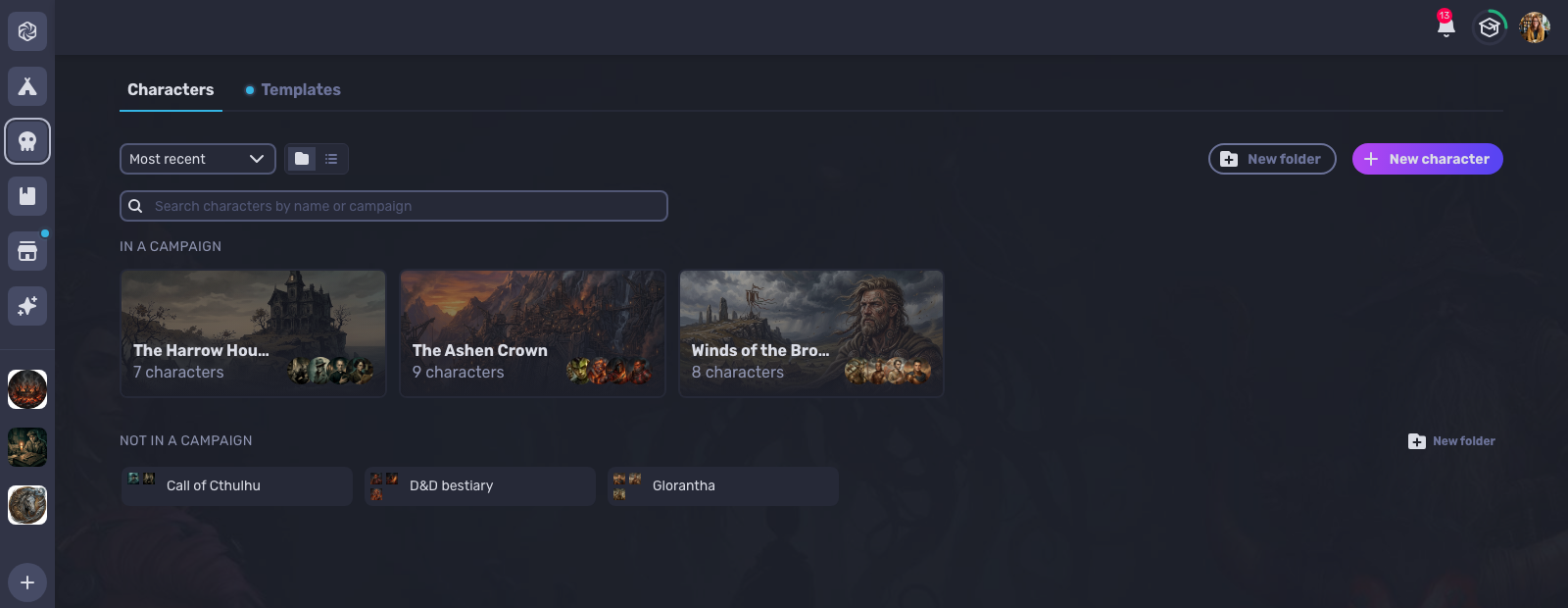
The Characters page sorts your characters into folders. Every campaign you're in is a folder, and you can make your own folders for characters that aren't in a campaign.
Folder view and List view
Use the two buttons beside the sort menu to switch between Folder view and List view. List view is a single list of all your characters, with the All, In campaign, Not in campaign and Claimable filters. Quest Portal remembers your choice in this browser.
Campaign folders
Under In a campaign, each campaign is a folder that shows how many of your characters are in it. Select it to open it, and select Open campaign to go to the campaign itself.
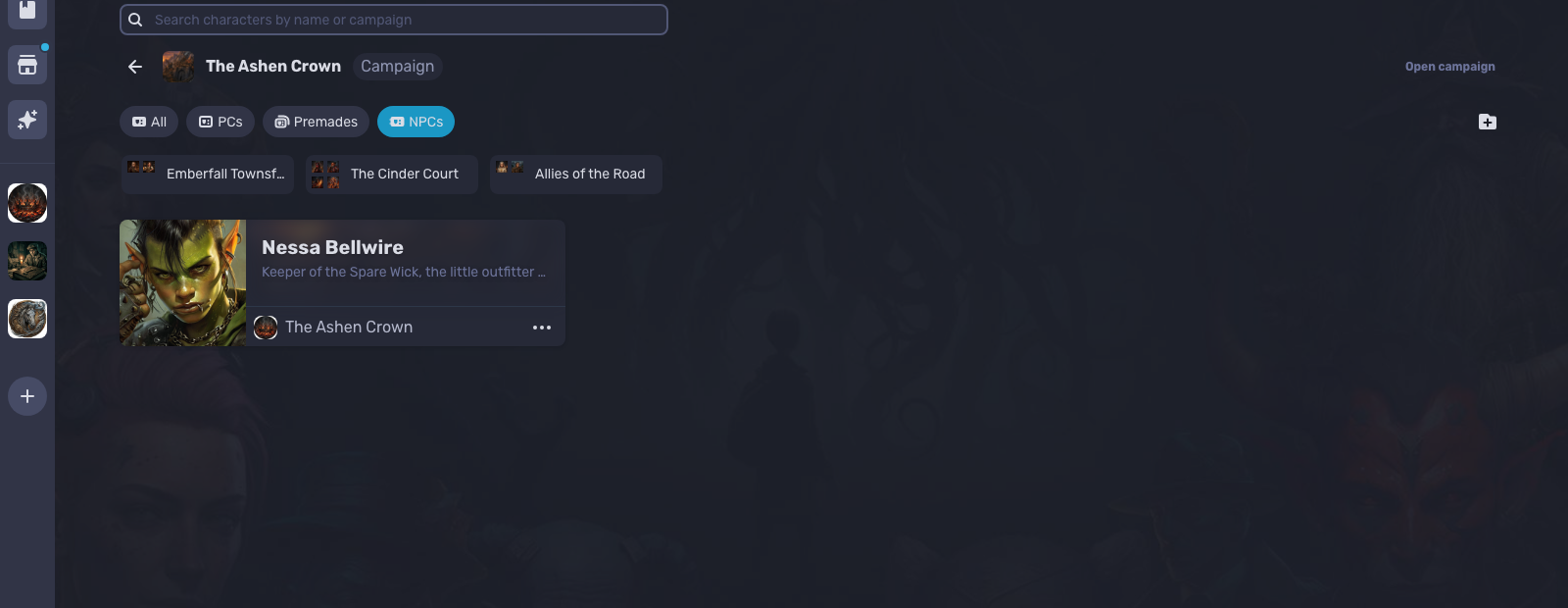
If you're the GM, the campaign folder has the same tabs as the campaign's characters: All, PCs, Premades and NPCs. Premades and NPCs keep their campaign folders. A folder you make, rename or fill here shows on the campaign page too, and the other way round.
If you're a player, the campaign folder shows your own characters in that campaign.
Your own folders
Under Not in a campaign, select New folder to make a folder. Folders can hold other folders.
To put a character in a folder, drag it onto the folder, or open the character's ••• menu and select Move to folder.
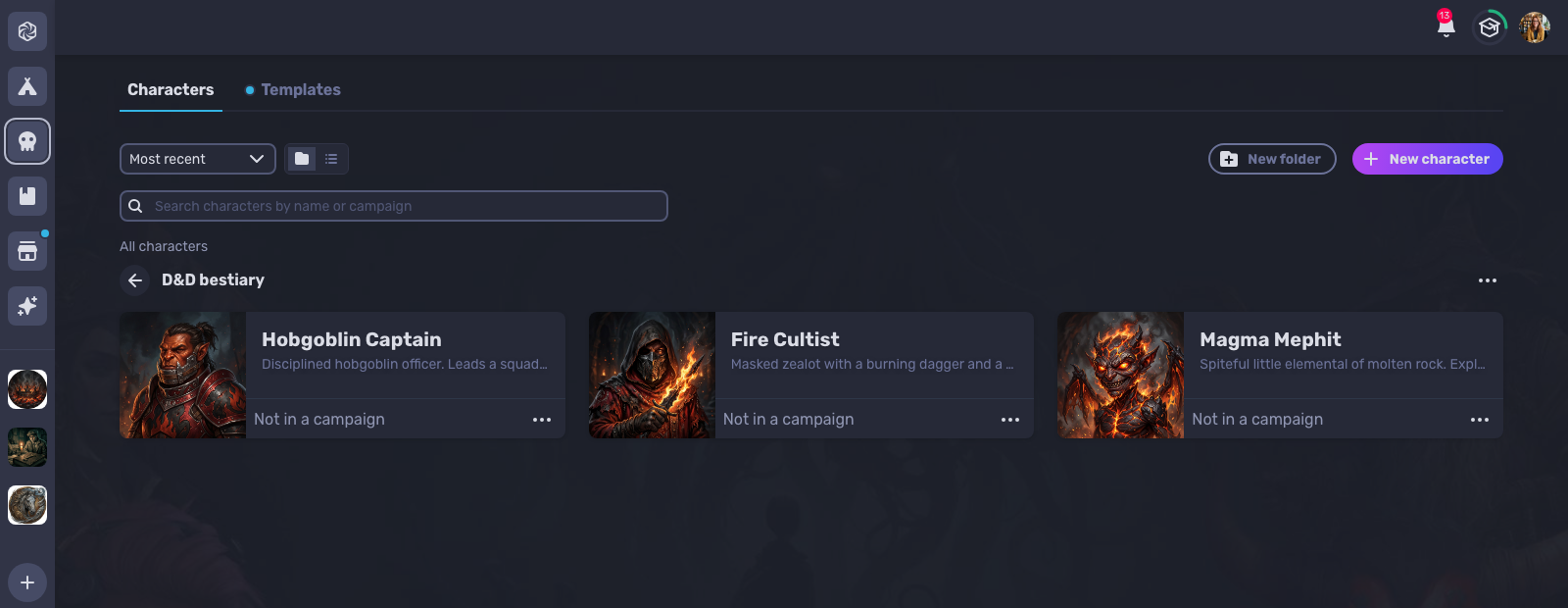
To rename a folder, open it and select its name. To delete it, open it, then select ••• and Delete folder. Its characters and folders move up one level; no characters are deleted.
A character you add to a campaign moves to that campaign's folder.
New characters
New character creates the character where you are: in the folder you have open, or in the campaign you have open. In a campaign you GM, a character made on the Premades tab is a premade, and one made on the NPCs tab is an NPC, in the folder you have open.
Search
Search looks through all your characters and groups what it finds by campaign and folder.
On mobile
Folders are on the web. The mobile apps show your characters as a list.