Custom Dice Skins
Custom dice skins let you roll with your own dice. Import a skin made from your artwork, or ask an AI assistant connected to Quest Portal to design one. Quest Portal adds the numbers, the dice shapes and the roll rules.
Who can use it?
Everyone can import, preview, use and delete skins on the web, in Account settings → Dice.
Creating skins with an AI assistant through Quest Portal MCP needs Pro. See Connect Quest Portal to Claude and ChatGPT.
The mobile app rolls with the skin you chose. You can't create, import or switch skins in the app.
What it does
Your skin is used every time you roll in 3D: from character sheets, notes, chat and the dice menu.
Your skins are private. Other players never receive your artwork. When they see your roll, it shows as a roll card, or with standard Quest Portal dice.
You can keep up to 20 skins and switch between them, or go back to a standard dice style at any time.
Find your skins
Open Account settings.
Choose the Dice tab.
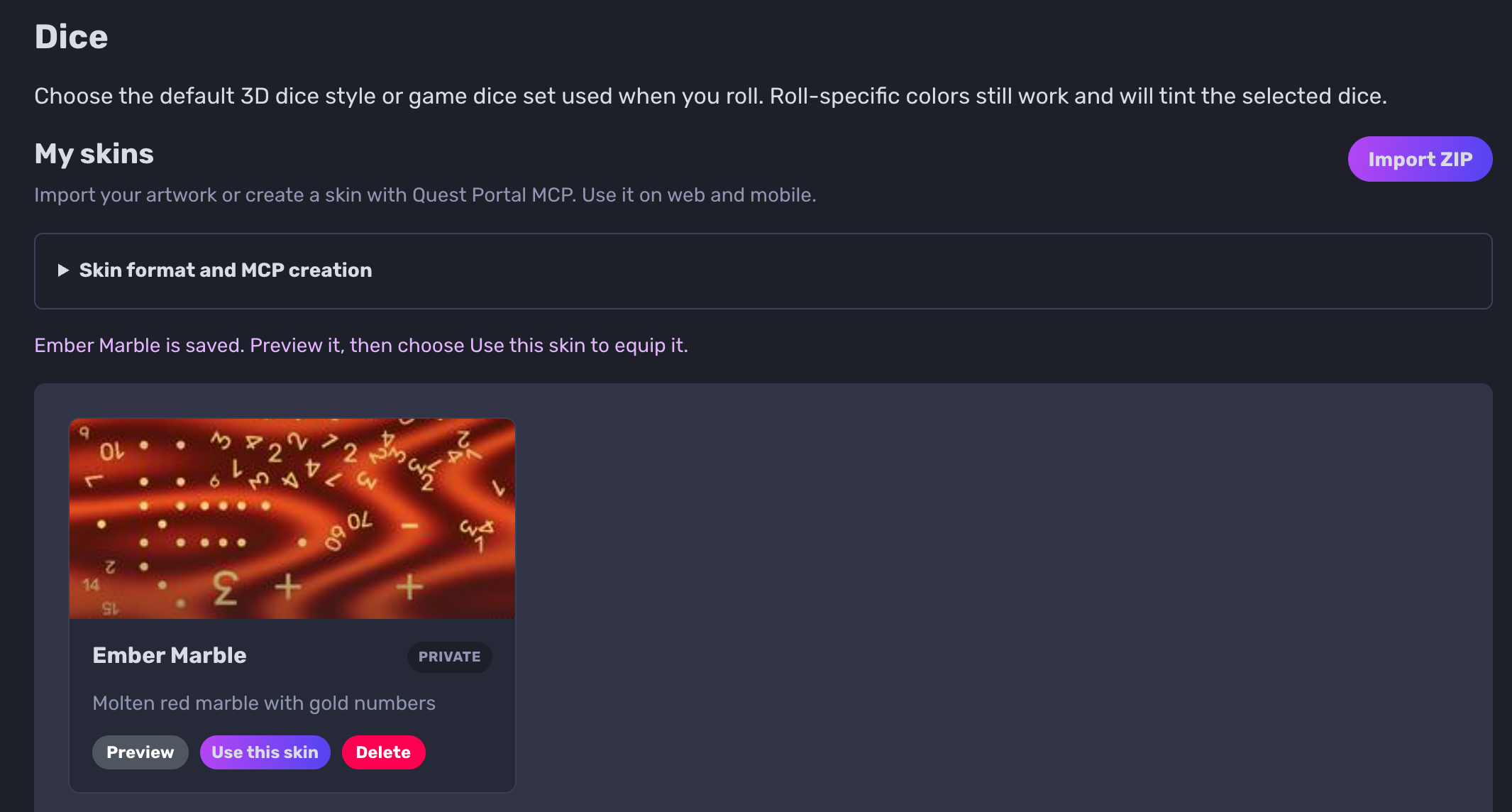
Your skins are under My skins. The standard dice styles and game dice sets are below them, under Default dice.
Make a skin from your artwork
In My skins, open Skin format and MCP creation and choose Download starter ZIP.
Unzip it. Replace basecolor.png with your artwork.
Edit skin.json to set the name, the number color and the finish. See The ZIP format below.
Zip the files again. Put them at the top of the ZIP, not inside a folder.
Choose Import ZIP and pick your file.
Your new skin shows up in My skins and its preview opens. Importing doesn't switch your dice to it. Choose Use this skin when you're ready.
Preview and use a skin
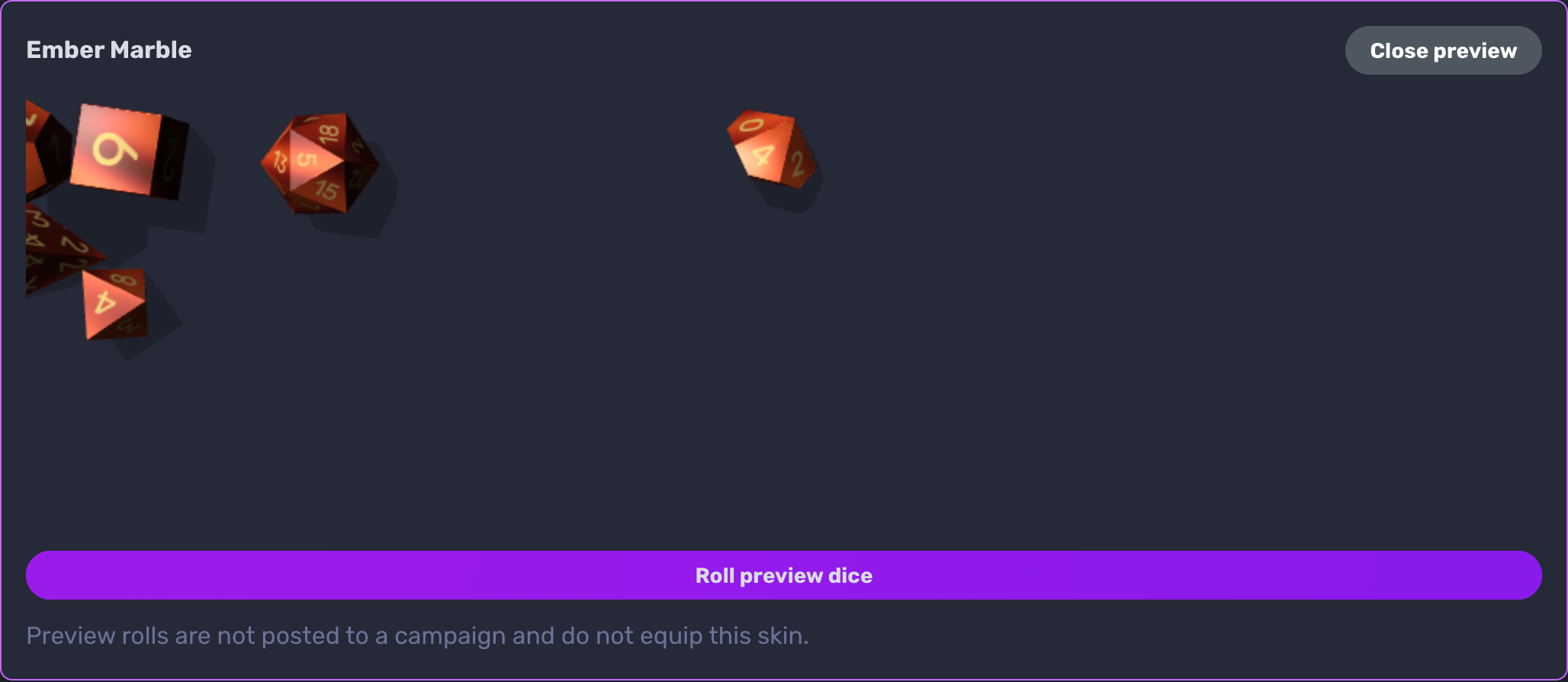
Preview opens the skin and rolls a set of dice once. Choose Roll preview dice to roll again. Preview rolls aren't posted to a campaign and don't switch your dice.
Use this skin makes it your dice everywhere you roll. The button then says Selected.
To go back to standard dice, choose Use this style on a style under Default dice.
Color tags in a roll formula, like 1d20#red, don't change the color of a custom skin. Your dice keep your artwork.
Delete a skin
Choose Delete, then Delete permanently. Deleting can't be undone. If it was your selected skin, your dice go back to Quest Portal Classic, the purple Quest Portal dice.
Create a skin with AI (MCP)
If you've connected Quest Portal to Claude, ChatGPT or another MCP client, ask it for a skin in plain words:
Create midnight-blue marble dice with gold numbers.
When you connect or reconnect, approve the Dice access. The dice skin tools need Pro.
The assistant can make three patterns: solid, marble and speckled, in two colors of your choice. It can also list your skins, switch to one of your skins or a standard style, import a skin ZIP, or delete a skin. Like an import, a new skin isn't used until you or the assistant switch to it.
On mobile
The mobile app rolls with the skin you chose on the web or through MCP. You can't create, import or switch skins in the app. Make your changes on the web. They can take a few minutes to show up on mobile, or show up right away when you restart the app.
The ZIP format
A skin ZIP holds these files, at the top level with no folders:
skin.json (required): the skin's settings.
basecolor.png (required): the dice artwork.
normal.png (optional): a normal map for surface bumps.
specular.png (optional): a specular map for shine.
No other files are allowed, and the files must match what skin.json lists: if you add normal.png, add it to skin.json too, and the other way round.
Here's the skin.json from the starter ZIP:
schemaVersion: always 1.
name: 1 to 60 characters.
description: optional, up to 240 characters.
material: keep "type": "texture" and "baseColor": "basecolor.png". If you add the optional maps, add "normal": "normal.png" and "specular": "specular.png".
numbers.color: the number color, as a six-digit hex code like #F5D477.
finish: "matte" or "polished".
Don't add other fields. The import fails if skin.json has a field it doesn't know, and the error names the field.
Limits
The ZIP: up to 4 MiB, and up to 12 MiB unzipped. Each file: up to 4 MiB unzipped.
Images: static PNGs (no animation), up to 2048 × 2048 pixels.
Quest Portal stretches your artwork to 512 × 512 and fills transparent areas with white.
Up to 20 skins. Up to 20 new skins a day, and one import attempt every 10 seconds. Deleting a skin frees a slot but doesn't give back that day's count.
Custom number symbols and animated skins aren't supported.
Artwork from a file vs. made by AI
From a file (texture): you supply the artwork in a ZIP. This is the only kind you can import.
Made by AI (procedural): the assistant builds the skin from a pattern (solid, marble or speckled) and two colors. There's no artwork file. You can only make these through MCP.
Troubleshooting
If the import says "Choose a .zip file." or "Your ZIP must be 4 MiB or smaller.", check the file type and size.
If it says the ZIP has an unsupported file or layout, make sure the files sit at the top of the ZIP with no folder and no hidden files, and that every file is listed in skin.json.
If the preview says "Your textures could not load. Standard dice are shown instead.", try again later. Your skin is still saved.
If your new skin doesn't show on mobile, restart the app.