Fog of War
Gradually reveal your battlemap with a simple Fog of War Tool to create an element of surprise around your gaming table. Our fog tool lets you effortlessly add or remove fog, adjusting the level of visibility on the battlefield. Game Masters can toggle between player preview and transparency to fine tune their perfect battlemap.
To start, click the cloud icon to start using the Fog of War tool. When enabled you will see a few options to choose from.
The first is a toggle. Green + allows you to add Fog of War, and a red - allows you to remove fog of War. When adding, the boundaries are dark, and when removing, the boundary is red. The toggle works with every tool, so you can both paint fog and erase it with the same shape.
There are four tools for Fog of War: Polygon, Square, Circle and Brush. The tool selected will be a pale blue color.

Polygon
Symbol: Two lines with three squares. To use, click onto the canvas area and keep clicking at each corner of the shape you want to create. To close the shape, click on the original point of the Polygon.
Square
Symbol: Filled square. To use, Left click + drag until you have the size and shape of the square that you want. Then let go of the click.
Circle
Symbol: Filled circle. To use, Left click where the center of the circle should be and drag outward until the circle is the size you want. Then let go of the click. This is handy for towers, round rooms and showing what a character can see around them.
Brush
Symbol: Paintbrush. To use, Left click + drag to paint freehand, then let go of the click. A single click paints a dot. The brush is great for caves, winding corridors and maps that don't line up with the grid.
When the Brush is selected, four dots appear to the right of the menu. Click a dot to choose the brush width: half a grid square, 1, 2 or 4 grid squares.
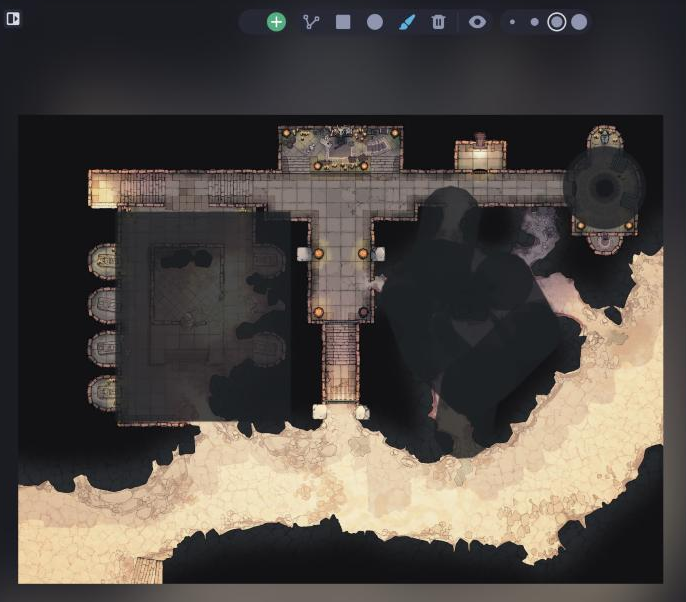
Below, the building on the left is covered with the Square, the tower on the right with the Circle, and the cave in the middle with the Brush.
Reveal All
Symbol: Trash can. This removes all the fog from the canvas, revealing the entire image or map.
Player Preview
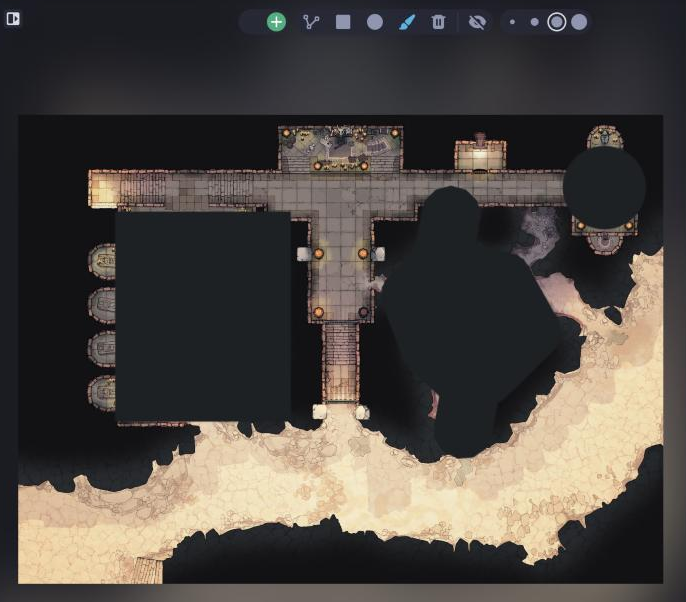
Symbol: An eye. This feature allows you to preview what the fog looks like from the player's perspective. The Game Master sees through the fog; players do not.
See Tokens to learn about the option to have tokens act as localized clearing of Fog of War, centered on the token.