Character Sheets
Character sheets are where information about your character is stored. Character's stats, backstory and more are a part of the sheet.
At the heart of these sheets lies our powerful Notes editor that allows you to create elements like headings, paragraphs, lists, checkboxes, tables, roll buttons and more.
Like within Notes, the floating bar Notes editor is the same within a Character Sheet, which allows you to create the following elements in your character sheet:
Headings level 1, 2, 3
Paragraphs
Tables
Checkboxes
Lists
Dividers
Callout box
Roll buttons
Points widgets
Slots widgets
Additionally, you can format the text by applying bolding, italics and more.
For a full explanation of features and abilities checkoutNotes and Formatting Shortcuts
Character Sheets can also make use of Tab Types and Options as well as adding multiple tabs by using the + next to the tabs at the top of the note.
You are also able to create a Character Sheet Templates to create multiple copies of the same sheet, or apply your template to a campaign. If a template is applied to a campaign the Game Master Assistant will strive to comform any characers it creates to this template.
Where to start
You can start creating a character in four places:
From the home screen > Click Create A Character.
From your Character Vault > Character Tab. Click the New Character button
From your Character Vault > Template Tab. Use the three dot menu on the Template card, or go into the Template and click Create a Character
From a Campaign > Sheets Tab > Plus Icon or Create a Character.
Create a Character Sheet
In Quest Portal, you create a Character Sheets from templates. When creating a character from the home screen, within the Character Tab of the Character Vault or a Campaign without a Template selected, you will be able to choose from Templates that you have access to. This includes:
a Custom System Sheet;
one of our Featured Templates;
your own Templates;
or from a Template shared with you.
You can filter the sheets you have access to by system from the drop down menu.

If creating a Character Sheet from the Templates Tab or a Campaign with a set Template, you will create a character sheet using the chosen template.
Once your character has been created, you can edit and modify the character sheet completely, including adding text, or adding and deleting all premade aspects.

Adding a Character to a Campaign
If you create a character sheet from inside a campaign, it will automatically be added to the campaign.
All characters, regardless of where they were created from, will be added to the Character Vault. In the Character Tab, find the the character you want added to a campaign, click the three dot menu and choose Add to Campaign. You will then be able to choose which of the Campaigns you are a part of to add the character to.
Enhanced Call of Cthulhu sheets
Quest Portal has full support for the 7th edition of Call of Cthulhu. This means the characters sheets are styled and laid out to support playing this system. You will notice the main difference being the locked UI and layouts of the first three tabs; but all other tabs work as Standard Tabs.

On the Call of Cthulhu character sheet you can click on abilities, skills and many more to roll our 3D dice. The roll results are then shown in a roll announcement, the chat and the degree of success/failure is shown.
Additionally, the Enhanced Call of Cthulhu Character Sheet can also make use of this function: Export PDF Character Sheets
For a more detailed insight into the Call of Cthulhu character sheets, checkout our overview this handy Youtube tutorial on Call of Cthulhu character sheets.
Character Sheet Visibility
Every character in a campaign has a visibility setting. It decides what the other players in the campaign see. The character's owner and the GM always see the whole sheet.
Visible Sheet: everyone in the campaign can open the sheet and read it.
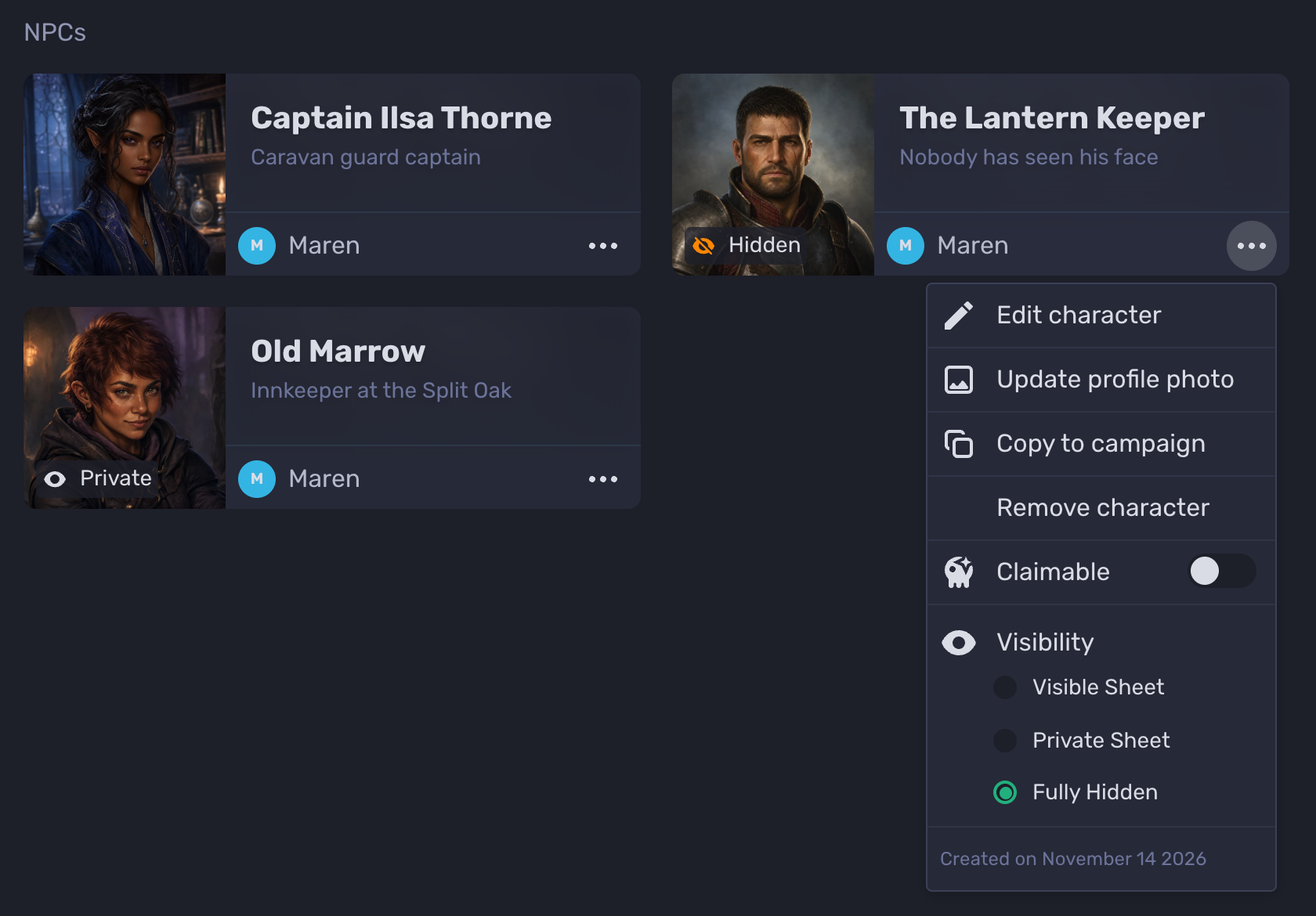
Private Sheet: other players still see the character's name, portrait and tagline, with a Private badge. They can open the sheet and see the names of its tabs, but every tab says "This content is hidden".
Fully Hidden: other players don't see the character at all. It isn't on the campaign page and it isn't in their Sheets drawer. Only the GM's own characters can be Fully Hidden.
Rolls made from a Private or Fully Hidden sheet are posted as hidden rolls. Other players don't see them. The GM can choose Reveal on a hidden roll to show it to the table.
Who can change it
Players can set their own character to Visible Sheet or Private Sheet.
The GM can set their own characters, such as NPCs, to any of the three. A character the GM creates in a campaign starts Fully Hidden.
The GM can't change the visibility of a player's character. Only the player can.
Change a character's visibility
Open the campaign.
Choose the ... menu on your character's card. You can also open the sheet and choose the ... menu in its upper right corner.
Under Visibility, choose Visible Sheet, Private Sheet or Fully Hidden.
The change applies right away. On the campaign page, a Private character shows a Private badge on its portrait and a Fully Hidden character shows a Hidden badge.
In the mobile app, the GM has a Show to players switch on their own characters. Off is the same as Fully Hidden. To choose Private Sheet, use Quest Portal on the web. The mobile app follows whatever is set.
Hide part of a sheet
To keep one tab secret and leave the rest of the sheet visible, such as a backstory or your loot, use a Hidden Tab. See Character Sheet Tabs.
Claimable characters
A claimable character is a ready-made character that your players can take as their own. Only the GM can make one, from a character the GM owns.
Turn on Claimable in the same ... menu.
Claimable characters are listed under Premades and players can read their sheets. They have no visibility setting.
A player opens the character and chooses Claim character. They get their own copy in the campaign. The original stays claimable for the other players.
To turn Claimable off, open the character's sheet and use the ... menu in its upper right corner.
All characters that you own, or have claimed, can be found in your character vault.
Tokens and Avatars
For more information, check out Character Avatars or Character Tokens.
Pop Out
Your Character Sheet can be popped out as a new window. Go to the campaign where they have been added, move the cursor over the Sheet option, right click, then choose New Window.

Link a sheet to the Initiative Tracker
A sheet can feed the Initiative Tracker so the GM doesn't have to copy numbers across.
Use as health on a points widget or a number modifier: the tracker card's hit points follow the sheet, and the sheet follows the card.
Use for initiative on a roll button or a modifier: when the GM chooses Roll initiative, this is the roll you make.
Use for AC on a modifier: the GM sees the value on their tracker. Only the GM sees it.
Open the widget's ... menu to find these. Call of Cthulhu investigators on the enhanced sheet need no linking: the tracker reads DEX and hit points from the sheet.