Session Scheduling
Session Scheduling puts your group's next sessions on the campaign page. Set up a one-off or recurring schedule, let players answer whether they're coming, and add every session to your own calendar.
Who can use it?
Session Scheduling is part of Core and works on web and mobile. Players don't need a plan of their own: everyone in the campaign can see the schedule, answer and add it to their calendar. See Plans and Billing.
The campaign owner (GM) creates, changes and deletes the schedule, on the web.
Everyone in the campaign, the GM included, sees upcoming sessions, answers whether they're coming and can add the schedule to their calendar.
Co-GMs and players can't edit the schedule.
What it does
Shows the next session on the campaign page, in your own time zone.
Repeats sessions weekly or every other week, or in any pattern you describe to the Schedule Assistant.
Lets you skip or move one session without changing the rest.
Shows who's going, who can't make it and who hasn't answered.
Sends reminders to players who haven't answered.
Keeps your Google, Apple or Outlook calendar up to date.
Create a schedule
Open your campaign page.
Choose Create a schedule, next to "No upcoming sessions scheduled".
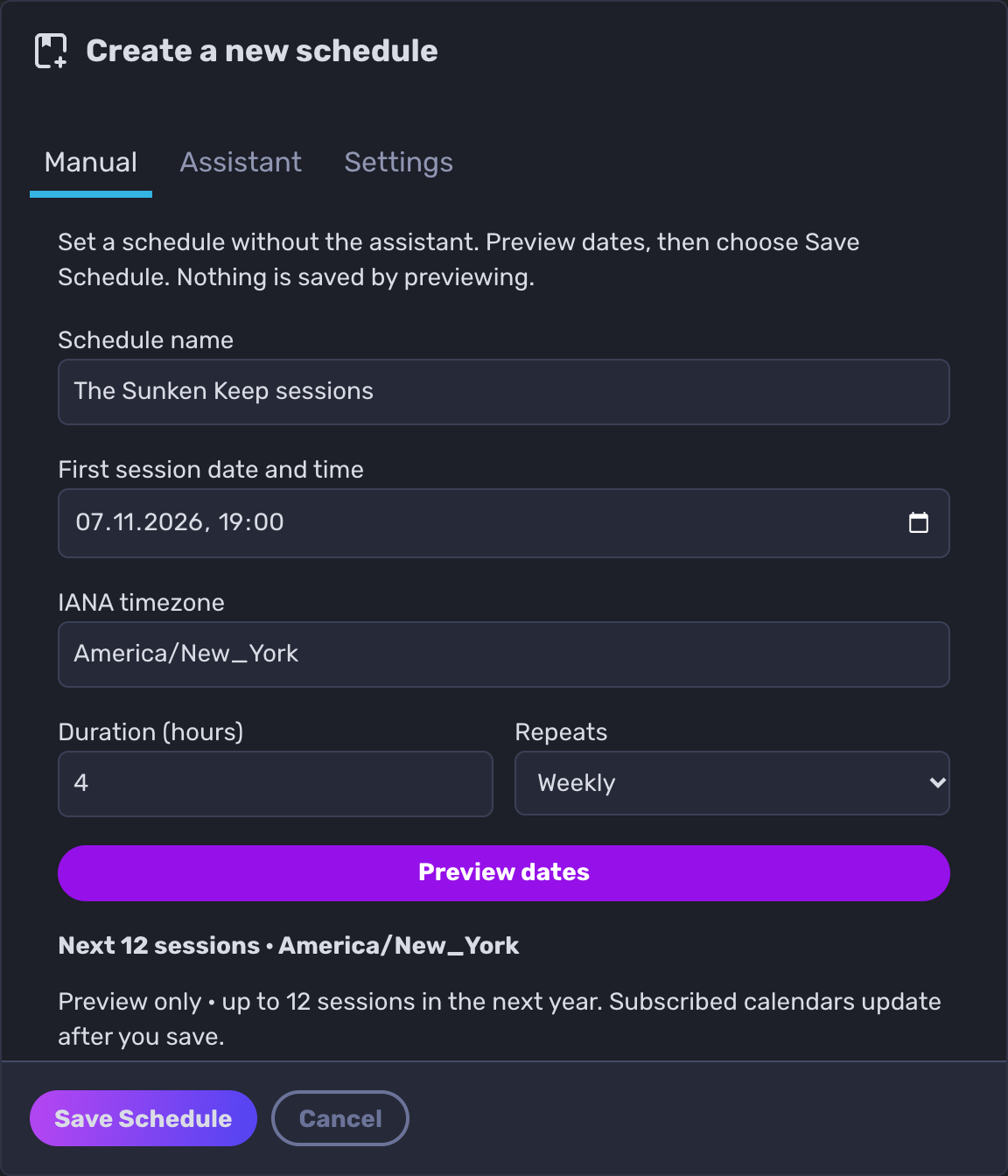
On the Manual tab, fill in:
Schedule name: shown in players' calendars. It starts as your campaign name followed by "sessions".
First session date and time.
IANA timezone: the time zone you play in, for example America/New_York or Europe/London. It starts as your computer's time zone.
Duration (hours): from 1 to 24.
Repeats: Once, Weekly or Every other week.
Choose Preview dates to see the next sessions, up to 12. Nothing is saved yet.
Choose Save Schedule.
Skip or move one session
In the preview, each session has Move session and Skip session.
Skip session removes that date. The rest of the schedule stays.
Move session lets you pick a new date and time for that one session. Players keep their answer for it.
Choose Save Schedule to keep your changes.
Use the Schedule Assistant
For anything the Manual tab can't do, such as monthly sessions, two sessions a week or an end date, describe it in your own words. The Schedule Assistant doesn't need Pro and doesn't use credits.
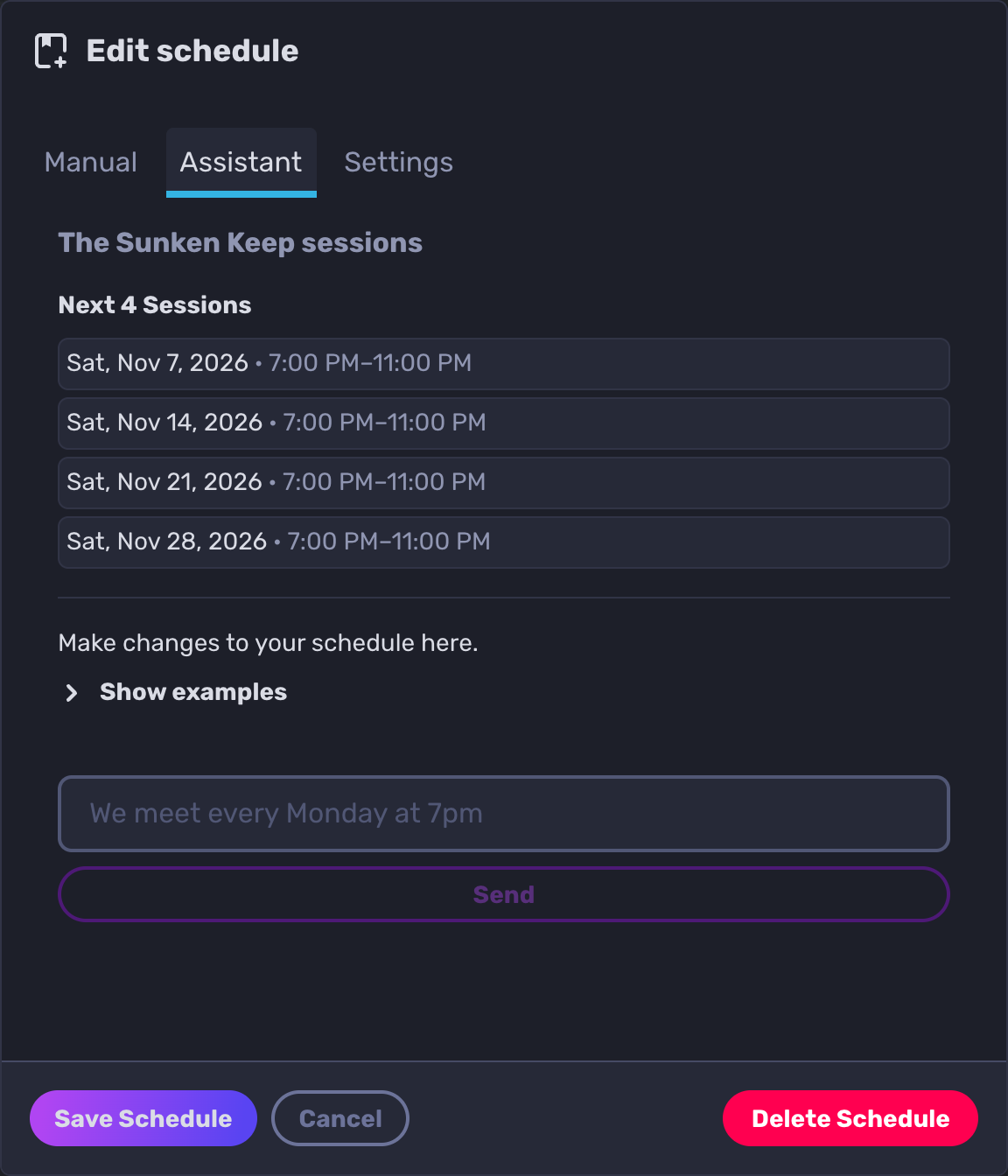
In the schedule window, choose the Assistant tab.
Type how you play, for example "We meet every Tuesday at 7pm for 4 hours and every other Saturday at 1pm for 6 hours." Choose Show examples for more ideas.
Choose Send. The assistant shows the sessions it made.
Choose Save Schedule.
The assistant uses your computer's time zone unless you name one, like "7pm London time". Once a schedule exists, you can ask it for changes too: "We are moving to Tuesdays at 8pm" or "Skip the session on January 15th".
Change or delete the schedule
On the campaign page, choose View schedule next to Next session. Make your changes on the Manual or Assistant tab, then choose Save Schedule.
When you change the time or day, players' answers and your skipped and moved sessions carry over. If you change how often it repeats, only sessions that stay at the same time keep them.
To remove the schedule, choose Delete Schedule, then Delete schedule. All upcoming sessions are deleted and disappear from subscribed calendars on their next refresh. This can't be undone.
Answer for a session
The Next session card on the campaign page shows the next date and time, everyone's answers and three buttons:
Going
Can't make it
Clear: removes your answer.
Choose View upcoming sessions to answer for later sessions too. It shows up to 12.
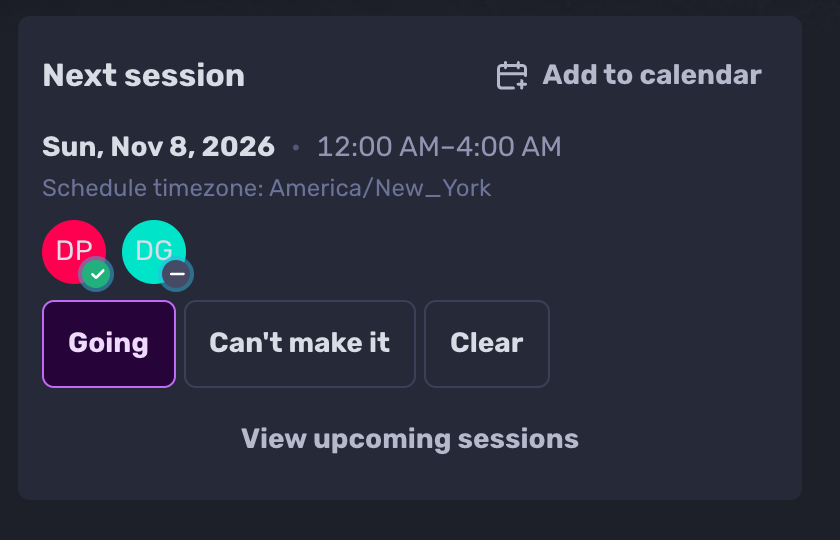
Everyone in the campaign can see everyone's answers. Each avatar shows a green check (going), a red cross (can't make it) or a grey dash (awaiting response). Hover over an avatar to see the name and answer.
Times show in your own time zone. If it differs from the schedule's, the card adds a line such as "Schedule timezone: America/New_York".
Add sessions to your calendar
On the campaign page, choose Add to calendar on the Next session card.
Choose your calendar: Google Calendar, Apple Calendar, Outlook.com or Microsoft 365.
Confirm the subscription in your calendar.
For any other calendar app, choose Copy link and add it as a calendar subscription. Some apps call this "From URL" or "Internet calendar".
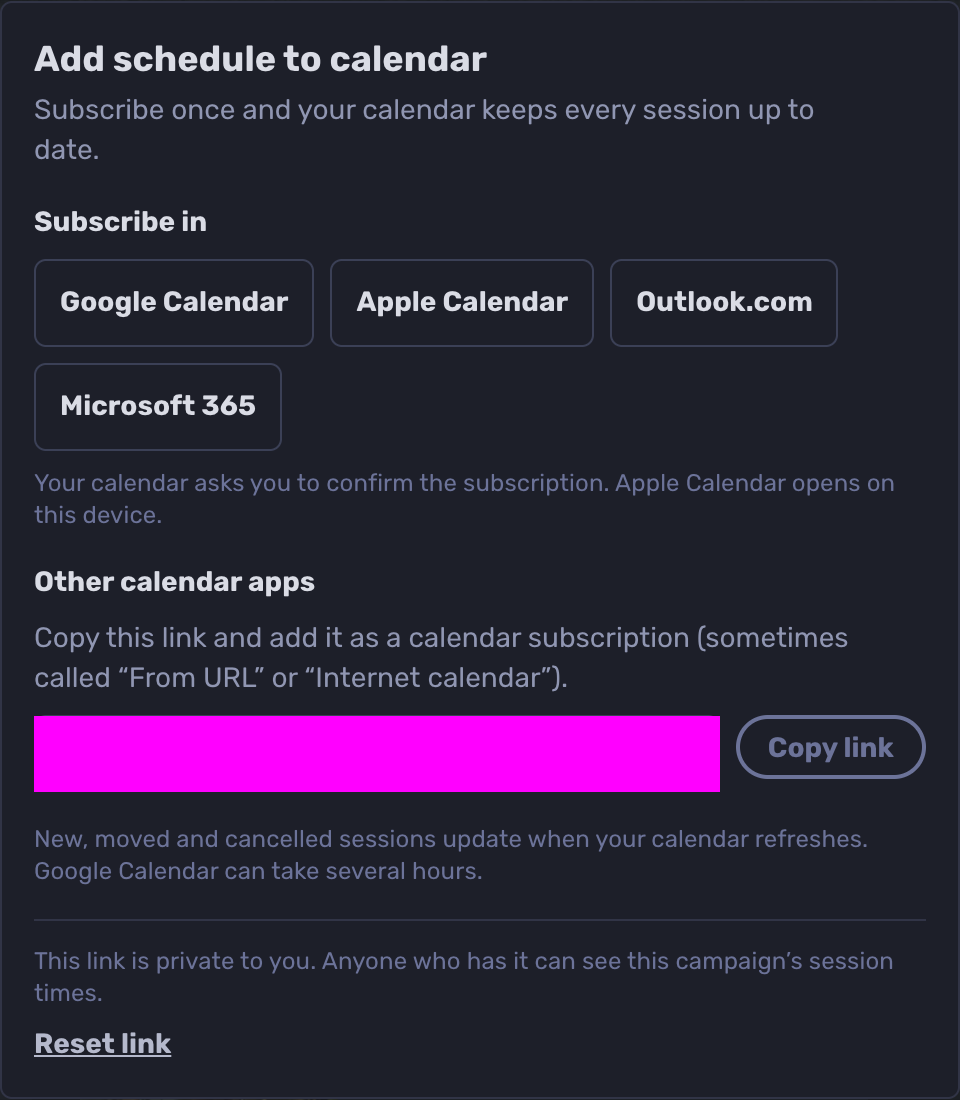
You subscribe once. New, moved and cancelled sessions update when your calendar refreshes. Google Calendar can take several hours.
Each event has the campaign name, the start and end time, and a link back to the campaign.
The link is private to you. Anyone who has it can see this campaign's session times. If you shared it by mistake, choose Reset link: calendars using the old link stop updating, and you can subscribe again with the new one. If you leave the campaign, your link stops working.
Reminders
Quest Portal reminds players who haven't answered, 3 days (72 hours) and 1 day (24 hours) before each session. The reminder, "Session RSVP reminder", arrives as a notification in Quest Portal and as a push notification in the mobile app.
Players who already chose Going or Can't make it don't get reminders.
One day before a session, if fewer than half the players have answered, the GM gets a "Session response check-in" with the number of answers so far.
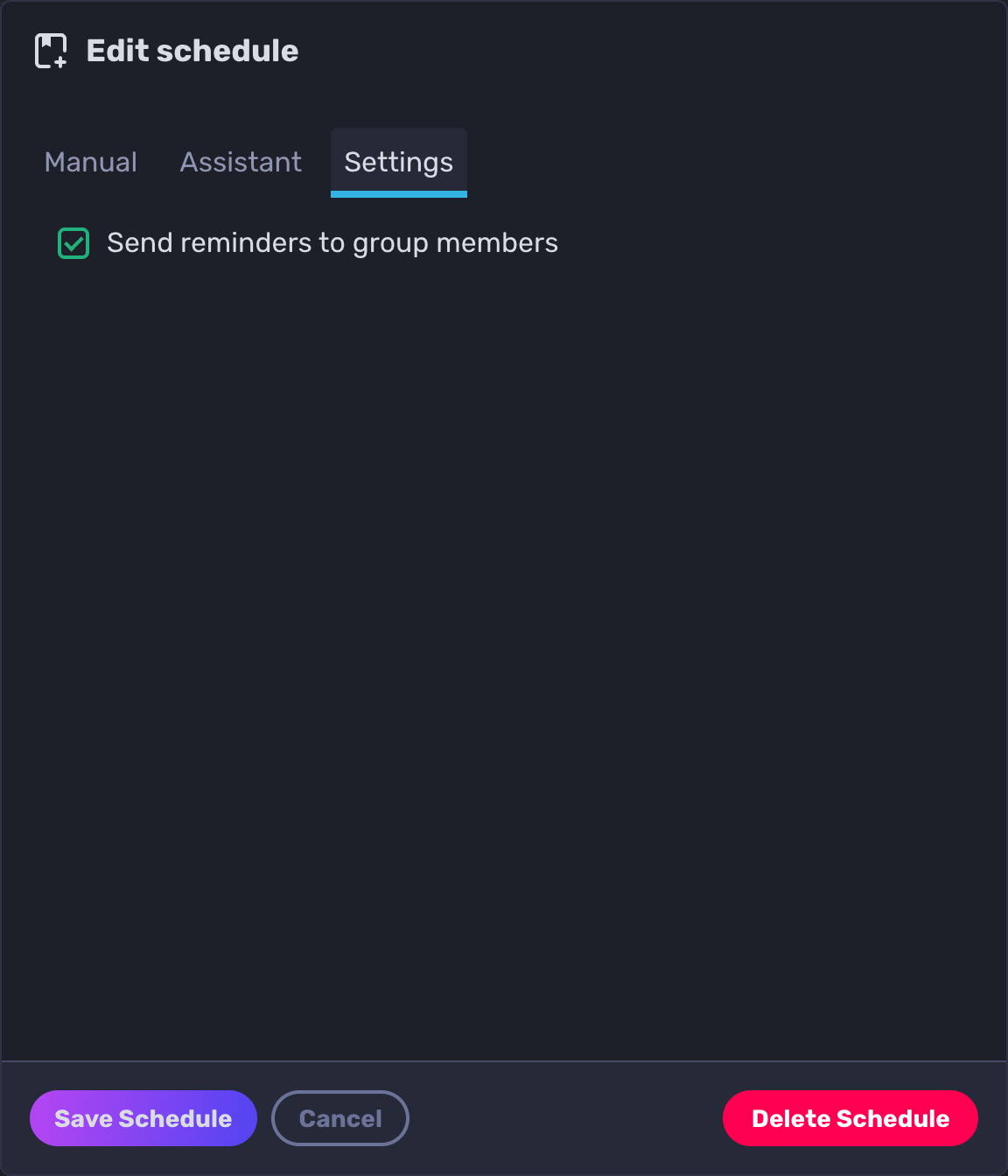
To turn reminders off for the whole group, open the schedule, choose the Settings tab, untick Send reminders to group members and choose Save Schedule.
On mobile
In the mobile app, the Next session card is on the campaign page, below Go to Session. It shows the date and time in your time zone, your answer and everyone's avatars.
Tap the card to open Session schedule:
Tap a session's button to switch between Going and Not going.
Choose Mark all as going to answer for every session at once.
Choose Load more to see more sessions.
Reminders open this list at the right session.
On mobile you can't create or change a schedule, clear an answer or add the schedule to your calendar. Use the web for those. If your campaign has no schedule yet, the card says "No upcoming sessions. Your GM can schedule sessions on the web."
Troubleshooting
If a session is missing, check whether it was skipped, and remember that past sessions drop off the list.
If your calendar doesn't show a change yet, wait for it to refresh. Google Calendar can take several hours.
If an older version of the mobile app shows "Not going" for sessions you haven't answered, update the app to the latest version.
If you don't get reminders on your phone, check that notifications for Quest Portal are allowed in your phone's settings.