Trackers
Put slots, progress clocks, point counters and timers straight onto a scene, where the whole table can see them.
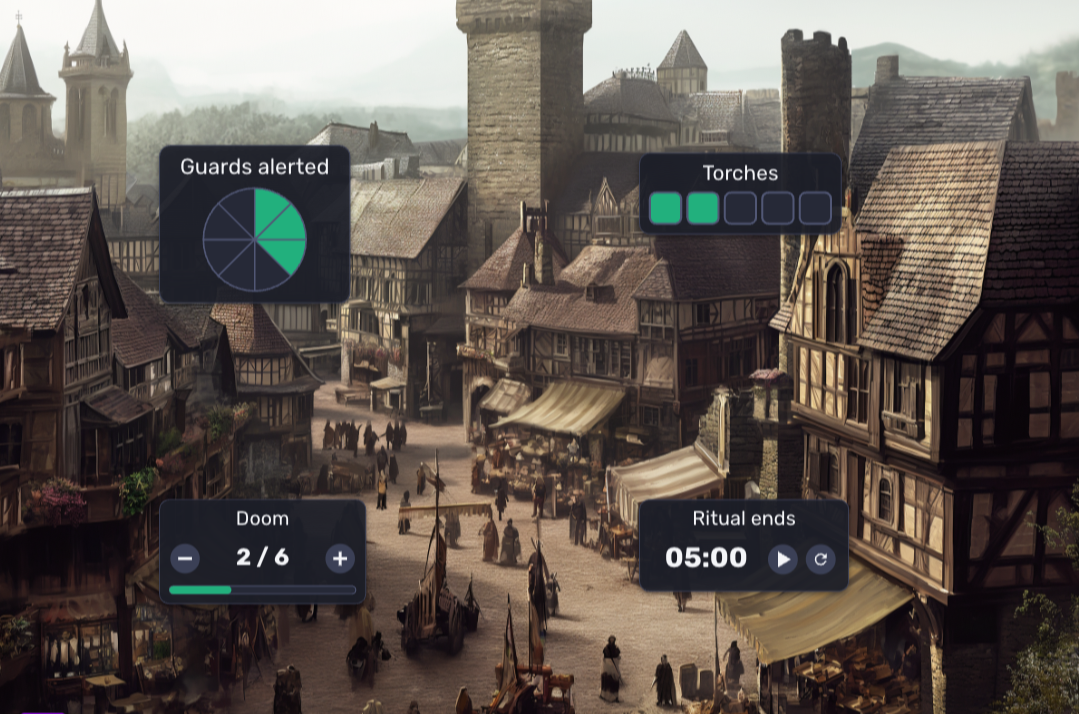
Trackers is a Game Master tool. Use it for anything you count during play: a progress clock for the guards' alert level, slots for torches or ammunition, a pool of points the party shares, or a countdown until the ritual ends. A tracker sits on the scene like a token or a pin: you can move it, resize it, lock it, and show or hide it.
To start, choose Trackers in the map tools at the top of the session screen, or press "T" on your keyboard.
The four trackers
Tracker | What it is | How you use it |
|---|---|---|
Slots | A row of boxes, from 1 to 20. | Click a box to fill it. Click it again to empty it. |
Clock | A circle cut into 2 to 12 segments. | Click a segment to fill the clock up to it. Click the last filled segment to step back by one. |
Points | A number with minus and plus buttons. | Click minus or plus to change the number by one. |
Timer | A clock that counts down or up. | Click play to start, pause to stop, and reset to start over. |
Placing a tracker
Choose the Trackers tool. A small menu opens under the map tools.
Pick Slots, Clock, Points or Timer. For a clock you can also pick 4, 6 or 8 segments.
Click the scene where you want the tracker.

The new tracker is selected, its menu is open and you can type a name right away. A new tracker starts hidden from players, so you can set it up first. Hidden trackers look half transparent to you.
A tracker starts as three slots, an empty clock, zero points or a five minute countdown. You change that in its menu.
The tracker menu
Click a tracker to select it and open its menu. Click it again, or click somewhere else on the scene, to close the menu. You need the Move, Select or Trackers tool for this.
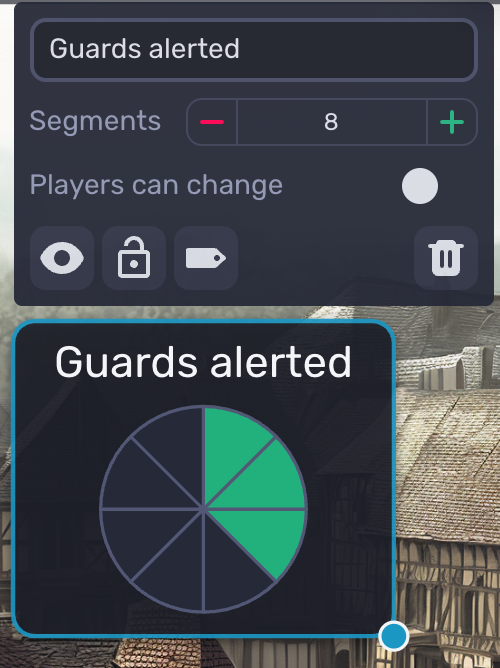
Every tracker has:
Name: shown above the tracker. Up to 40 characters.
Players can change: lets your players use the tracker. See "What players see" below.
Show to players / Hide from players (eye icon).
Lock / Unlock (padlock icon): a locked tracker can't be moved or resized, so you won't drag it by accident while clicking it.
Hide name / Show name (label icon): keeps the name but stops drawing it on the scene.
Remove (trash can icon).
Each kind of tracker has its own settings:
Slots: the number of slots, from 1 to 20. More than ten slots wrap onto a second row. Turn on Halves if a slot can be half used: a click then goes from empty to half, to full, and back to empty.
Clock: the number of segments, from 2 to 12.
Points: the current value, and a Maximum. With a maximum the tracker shows the value as "3 / 10" with a bar, and the value can't go above it. Leave the maximum at 0 for a plain counter.
Timer: Count down or up. For a countdown, set the Minutes and Seconds. Changing the time or the direction resets the timer.
Moving, resizing and removing
Move: drag the tracker.
Resize: select the tracker and drag the round handle at its bottom right corner. A tracker can be from half a grid square to six grid squares wide.
Remove: choose Remove in the menu, or select the tracker and press Delete or Backspace.
Only the Game Master can move, resize, edit and remove trackers.
Timers
A countdown stops at 00:00 and turns red. A timer that counts up runs until you pause it.
A timer keeps running while it is hidden and while nobody has the scene open, so you can start a hidden timer and show it later.
Every device works out the time from its own clock. If a player's device clock is a couple of seconds off, their timer is a couple of seconds off too. There is no sound when a timer ends.
What players see
Players see a tracker once you choose Show to players. They see it change as you use it, on the web and in the iOS and Android apps. Hidden trackers are also left out of Theatre Mode and the spectator view, even when the Game Master opens them.
Players can't move, resize or edit a tracker. They can use it only if you turn on Players can change for that tracker. They can then click slots and clock segments, press minus and plus, and start, pause and reset a timer, with the Move or Select tool. Use this for something the party looks after, such as a shared pool of points.
Good to know
A tracker belongs to the scene you placed it on. It does not follow you to other scenes.
Trackers are separate from the Slots and Points widgets in notes and character sheets. Use a widget for something that belongs on a sheet or in a note, and a tracker for something the table should see on the scene.
Mobile apps
Trackers show up in the iOS and Android apps, and you can use them there in the same way: tap a slot, a clock segment or a button.
Placing a new tracker from the app needs app version 10.1.0 or later, where Trackers is in the Game Master's session toolbar. On older versions, place the tracker on the web and use it in the app.
Keyboard shortcut
Press "T" to choose the Trackers tool.
Note: The Trackers tool is only available to Game Masters.