To run combat in Quest Portal, plan the fight as an encounter in Notes, then open the Combat tab in your session, choose Start and click Next Turn as each character acts. Your players follow the turn order live on web and mobile, and any monster you've hidden stays hidden until you reveal it.
This guide walks through a real fight: a goblin ambush at a river ford in a D&D 5e campaign, with a bandit captain lurking in the trees. The same steps work for Pathfinder, Call of Cthulhu or any game that takes turns.
Who this is for
GMs who want turn order on screen instead of on a scrap of paper. Everyone in your campaign can use the tracker: you plan and run encounters, and your players watch the fight in the Combat tab. Players don't need to turn anything on.
For the full reference, see Initiative Tracker in the docs.
Before you start: put your monsters in the campaign
The tracker uses the characters in your campaign. Create each monster or NPC as a character first. You only need one of each kind: for this ambush that's a Goblin, a Bandit Captain and the party's travelling cleric, Sister Odile, alongside the players' characters.
Step 1: Plan the encounter in Notes
Encounters stay with your campaign, so you can build this one days before the session.
Open Notes and find the Encounters section, between your private notes and your campaign notes. Only you see it.
Choose + next to Encounters. A tracker opens above a normal note.
Rename it by editing the note's first heading. We called ours "Goblin ambush at the ford".
Use the note below the tracker for everything else you need at the table: tactics, terrain, loot.
Step 2: Add the combatants
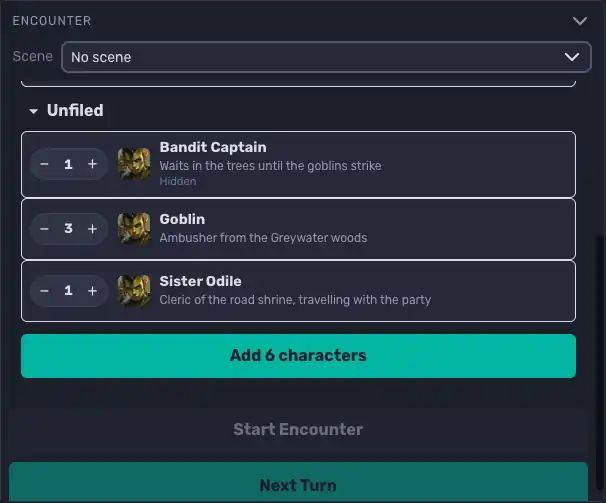
The character list opens right away on a new encounter. Choose + next to each character you want in the fight.
Need three goblins? Use + on the Goblin three times. Quest Portal numbers them for you: Goblin 1, Goblin 2, Goblin 3. Then choose Add 6 characters (the button counts for you).
Step 3: Enter initiative
Roll initiative the way you always do, at the table or with Quest Portal's dice. Then:
Choose the pen icon (Edit initiative).
Click the number on each card and type the result.
Choose the check mark when you're done.
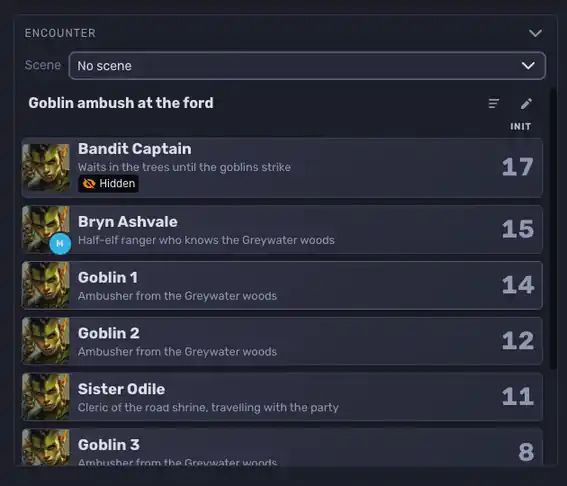
The tracker sorts the cards from highest to lowest. Here the Bandit Captain rolled a 17, Bryn the ranger a 15, and the goblins 14, 12 and 8.
Step 4: Hide the ambush
The Bandit Captain shouldn't appear on your players' screens until he jumps out of the trees. You hide the character, not the tracker:
In your campaign's character list, open the character's ... menu.
Under Visibility, choose Private Sheet or Fully Hidden.
Hidden characters stay in your tracker, marked Hidden. Players don't see the card, the name or even how many hidden characters there are. When it's the captain's turn, players still see the last visible character highlighted, so nothing gives the surprise away.
Step 5: Run the fight
In your session, open the scene deck and choose the Combat tab.
Pick "Goblin ambush at the ford" from the encounter menu at the top.
Choose Start. Round 1 begins, and your players can now see the tracker.
Choose Next Turn as each character finishes. After the last one, the next round starts.
Here's the same moment from both sides of the screen. The GM sees the hidden Bandit Captain; the player doesn't.
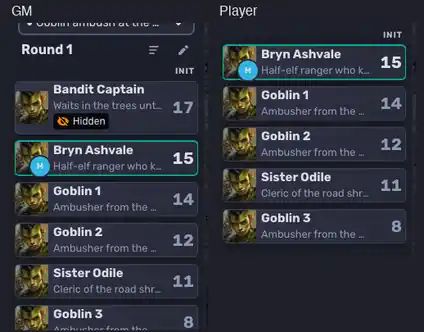
When the captain finally springs his trap in round 2, set him back to Visible Sheet. He appears in your players' tracker right away.
A few things that help mid-fight:
Someone delays or you skipped a turn: use the turn menu above the buttons to make any character the active turn.
Need a break or a cutaway scene: choose Stop. The encounter disappears for players and keeps its round and turn, so Start picks up where you left off.
Running the same fight again: Reset clears the round and active turn but keeps the characters and their initiative.
What players see
Players open the Combat tab in the session. Before you start, it says no encounter is running. Once you start, they see the round, whose turn it is and every visible character. They never see the encounter's name, your notes, or encounters you're still planning. Only you can change turns.
On mobile, players and GMs open the session drawer and choose the Combat tab (the sword icon). GMs get the same controls as on the web.
Limits worth knowing
Initiative is typed in, not rolled by the tracker.
The tracker keeps turn order only. Track hit points and conditions on the character sheets.
One encounter runs at a time in a campaign.
The docs page lists everything else, including grouping encounters under scenes and what works on mobile: Initiative Tracker.
Troubleshooting
My players can't see the tracker. Check that you chose Start and that the round shows at the top. A stopped encounter is hidden from players.
A monster is missing for players. That's visibility doing its job: Private Sheet and Fully Hidden characters never show to players.
I can't delete an encounter. Stop it first. A running encounter has no trash icon.
Next step
Open your campaign, choose + next to Encounters in Notes, and build the fight for your next session. Want to schedule that session too? See How to schedule your D&D sessions and get RSVPs into everyone's calendar.
Jump to section
